Setting up Gmail for email on Android
This guide walks you through setting up an email account in the Gmail app on your Android device.
If this is your first time using the Gmail app, and haven't previously added any email accounts then please open Gmail and start from Step 4.
If you are already using Gmail with other accounts follow these steps to add a new account.
1 If you're already using Gmail with other accounts start here. Open the Gmail app and click the hamburger icon to open the sidebar

2 Scroll to the bottom and click the gear icon

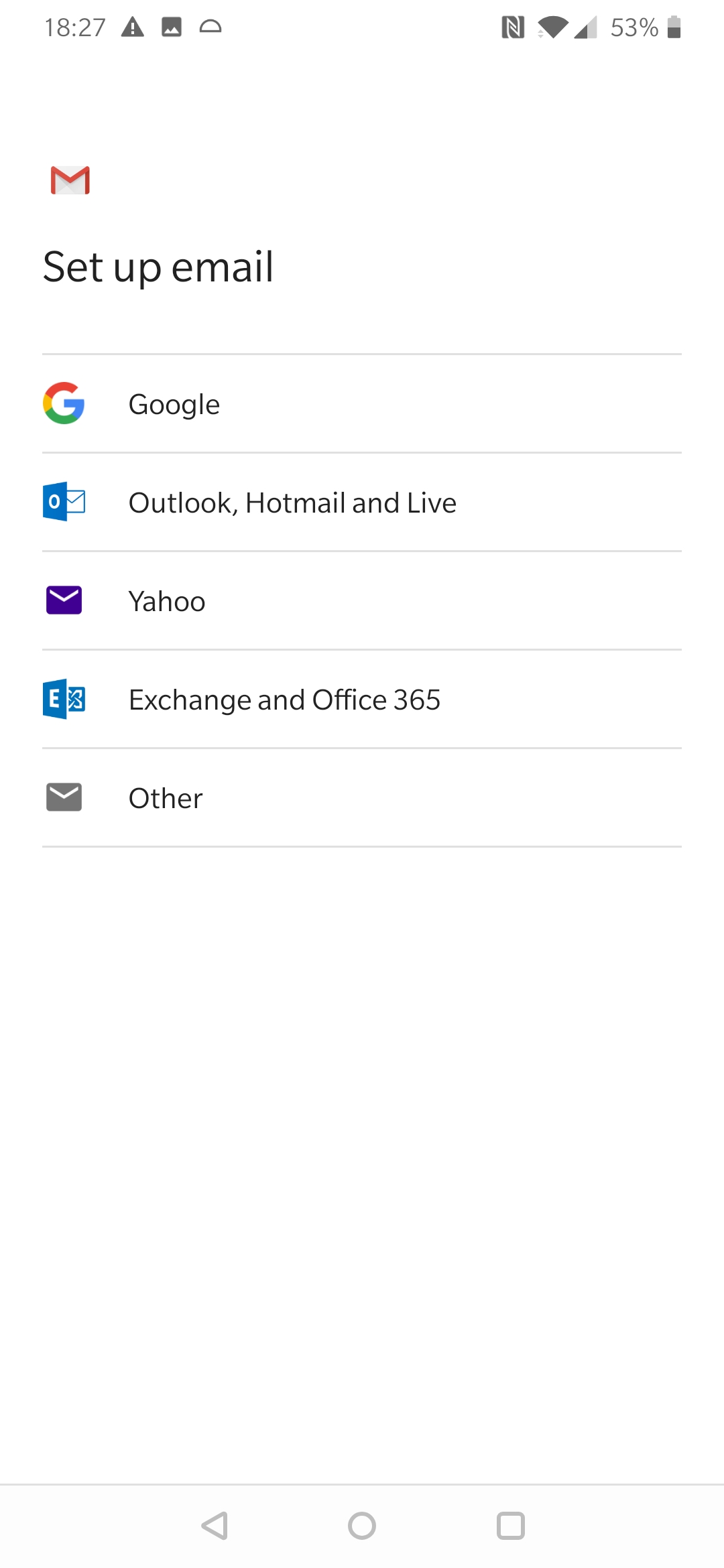
3 Then click Add Account
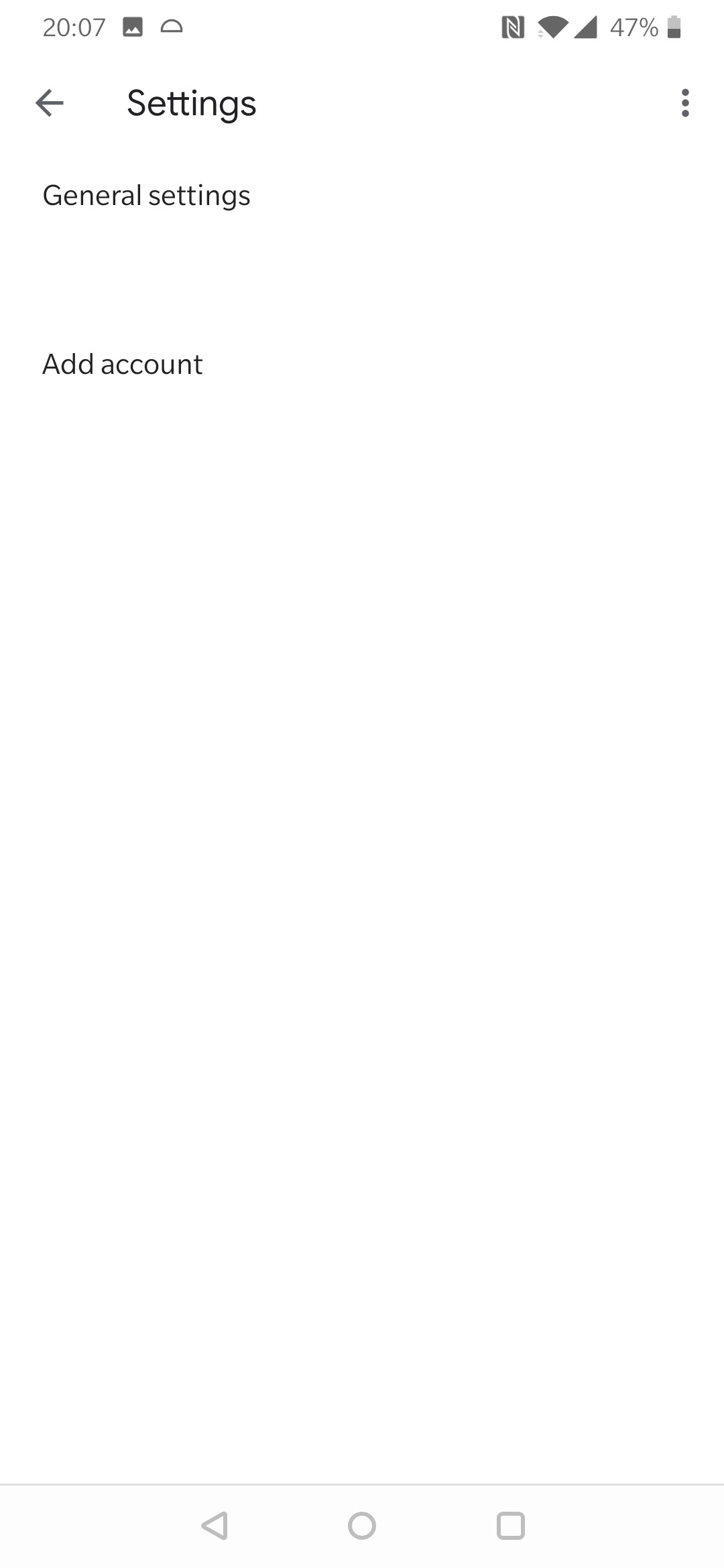
4 From here on the instructions are the same whether this is your first account or an additional account. Click Add an email address+
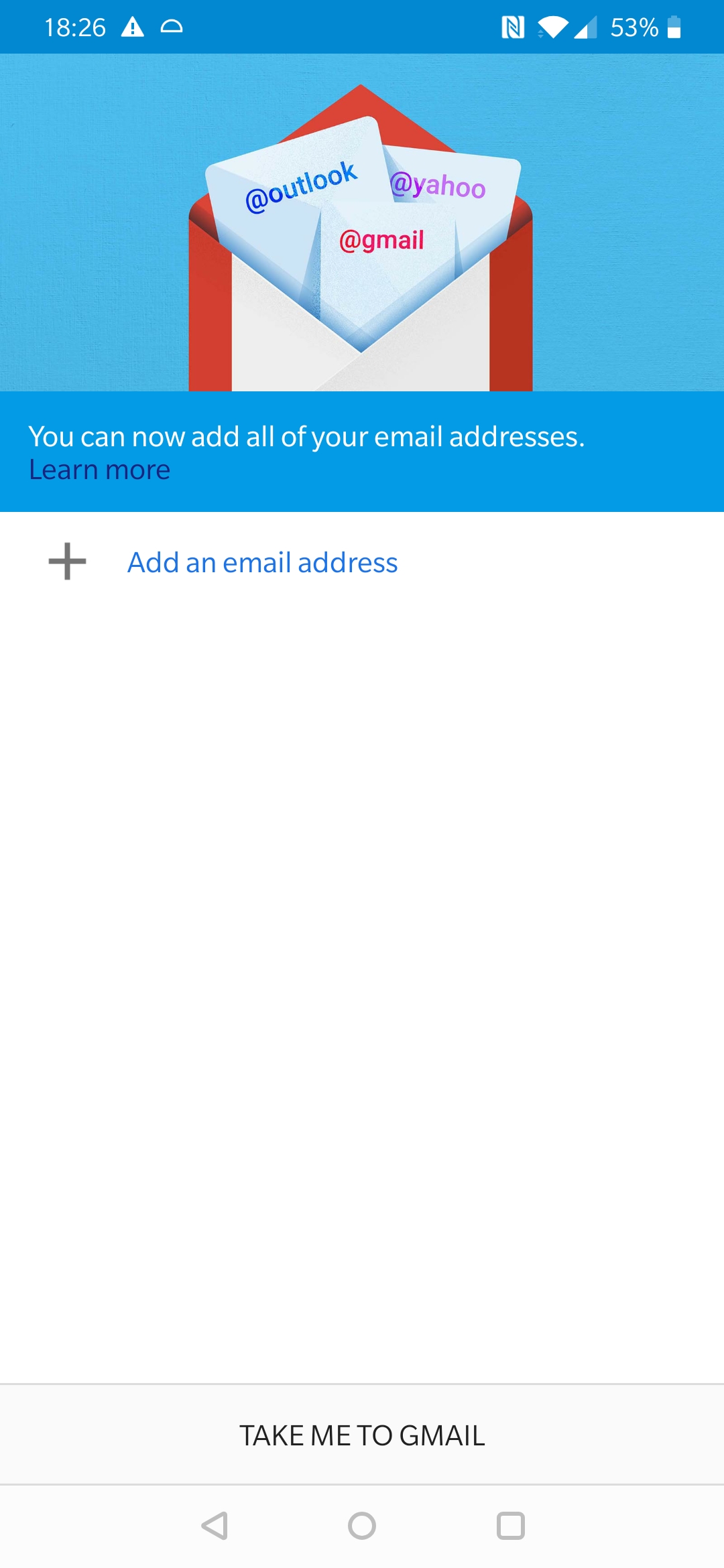
5 Select Other
6 Type your email address

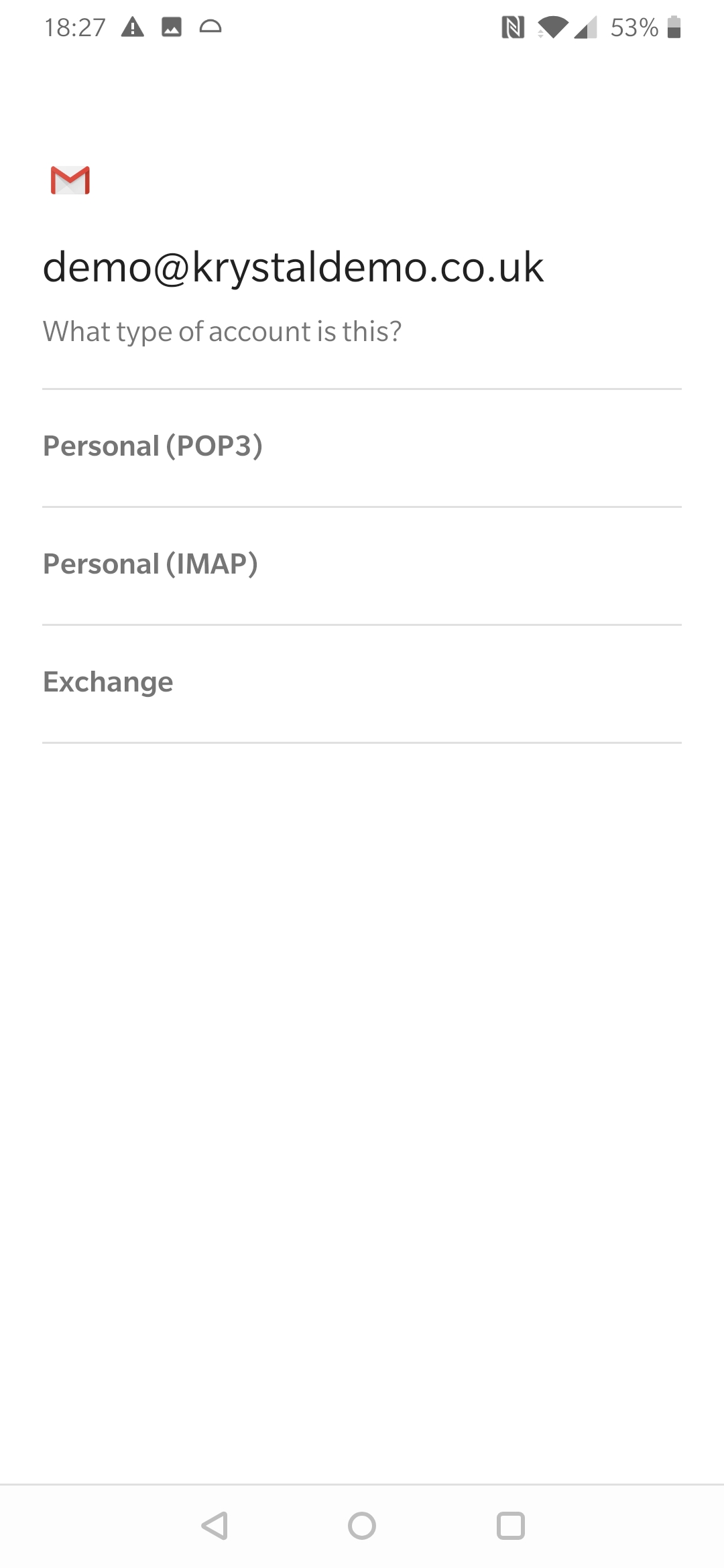
7 Select Personal (IMAP)
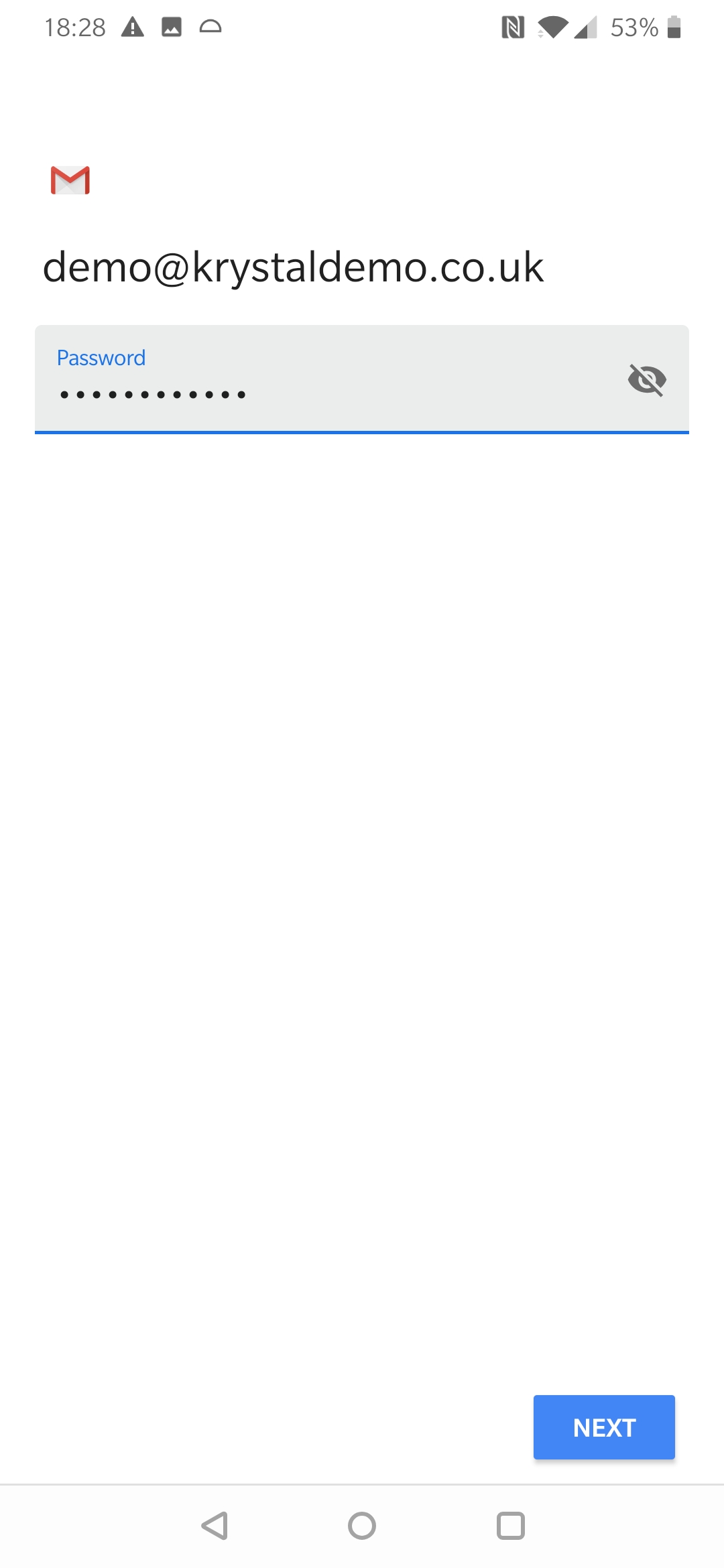
8 Enter the new email accounts password
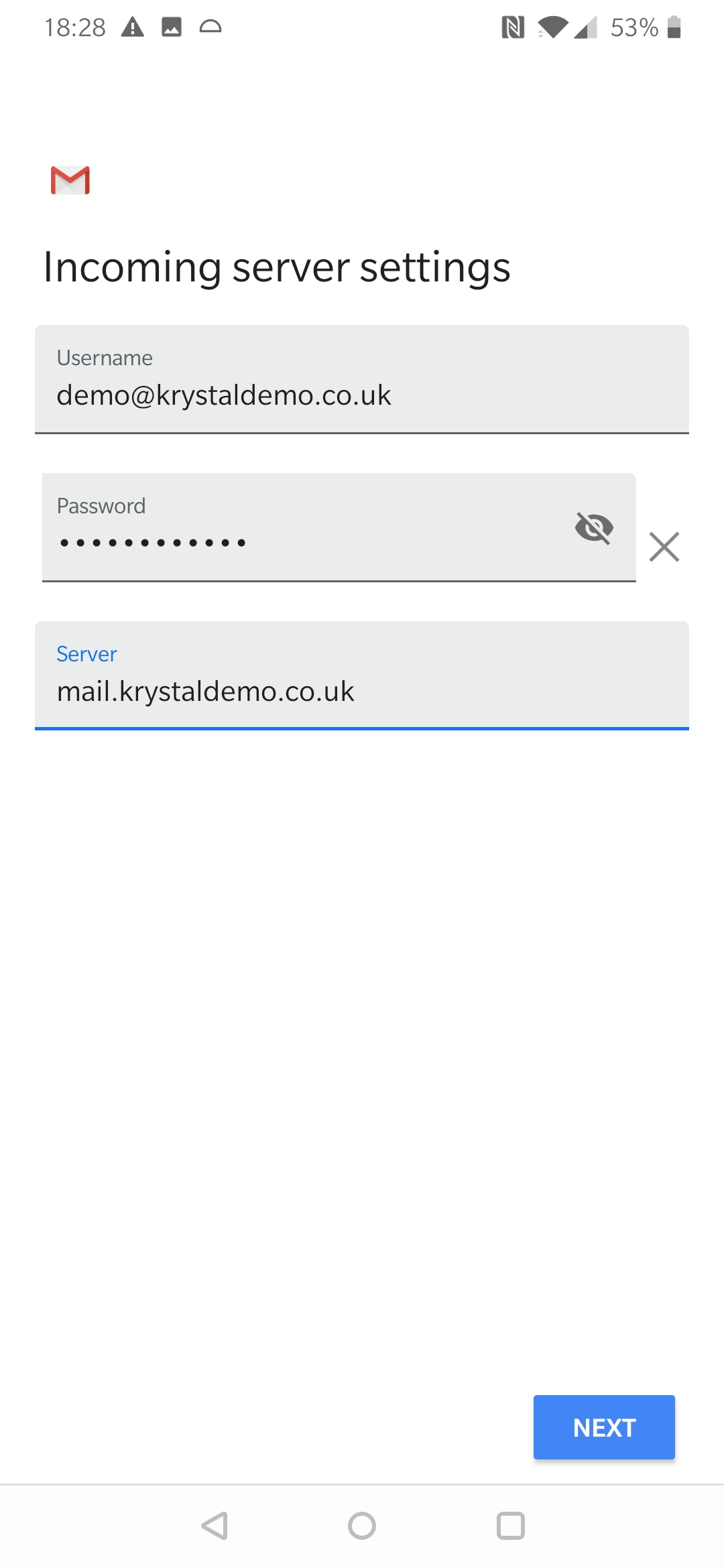
9 Check the incoming server name - it should either be mail.your.domain (e.g. if your domain is example.co.uk then mail.example.co.uk).
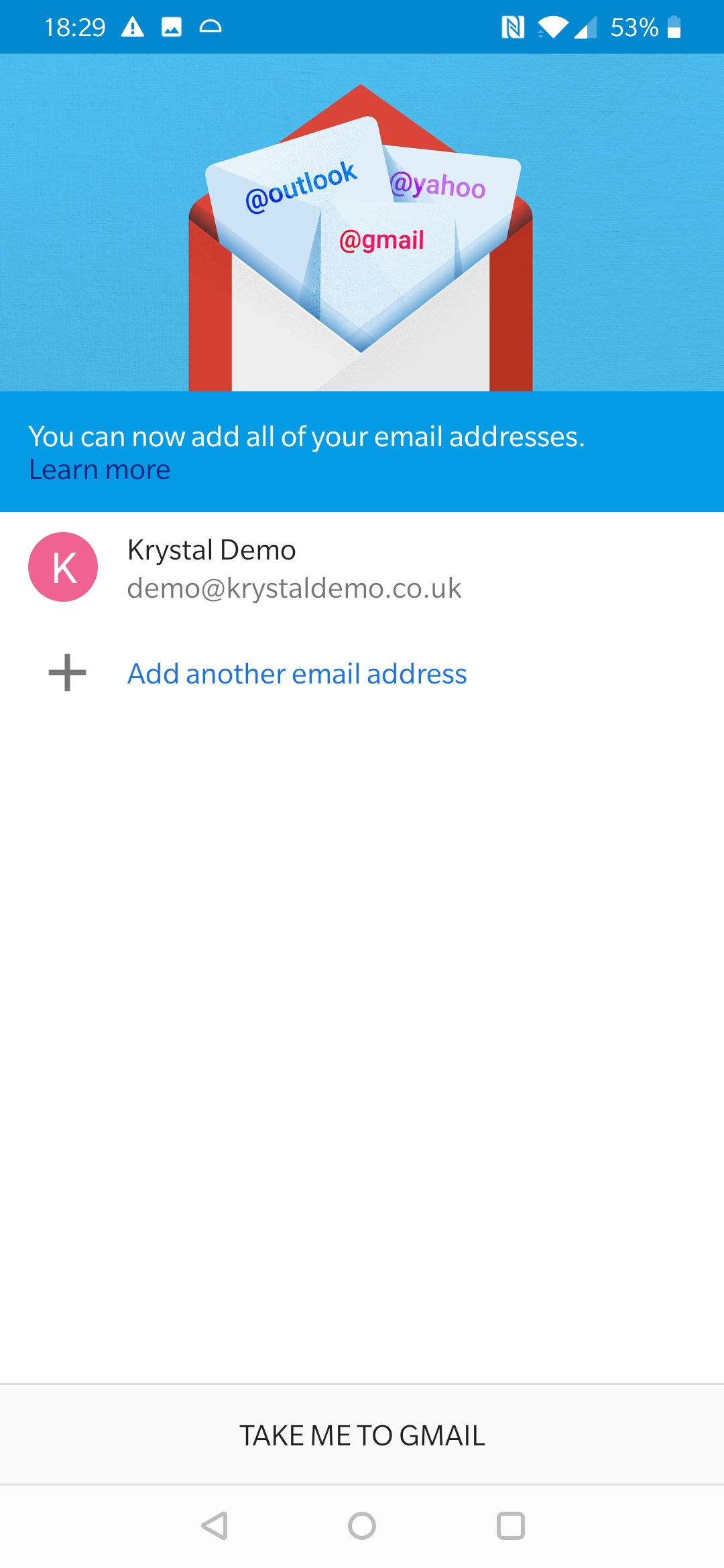
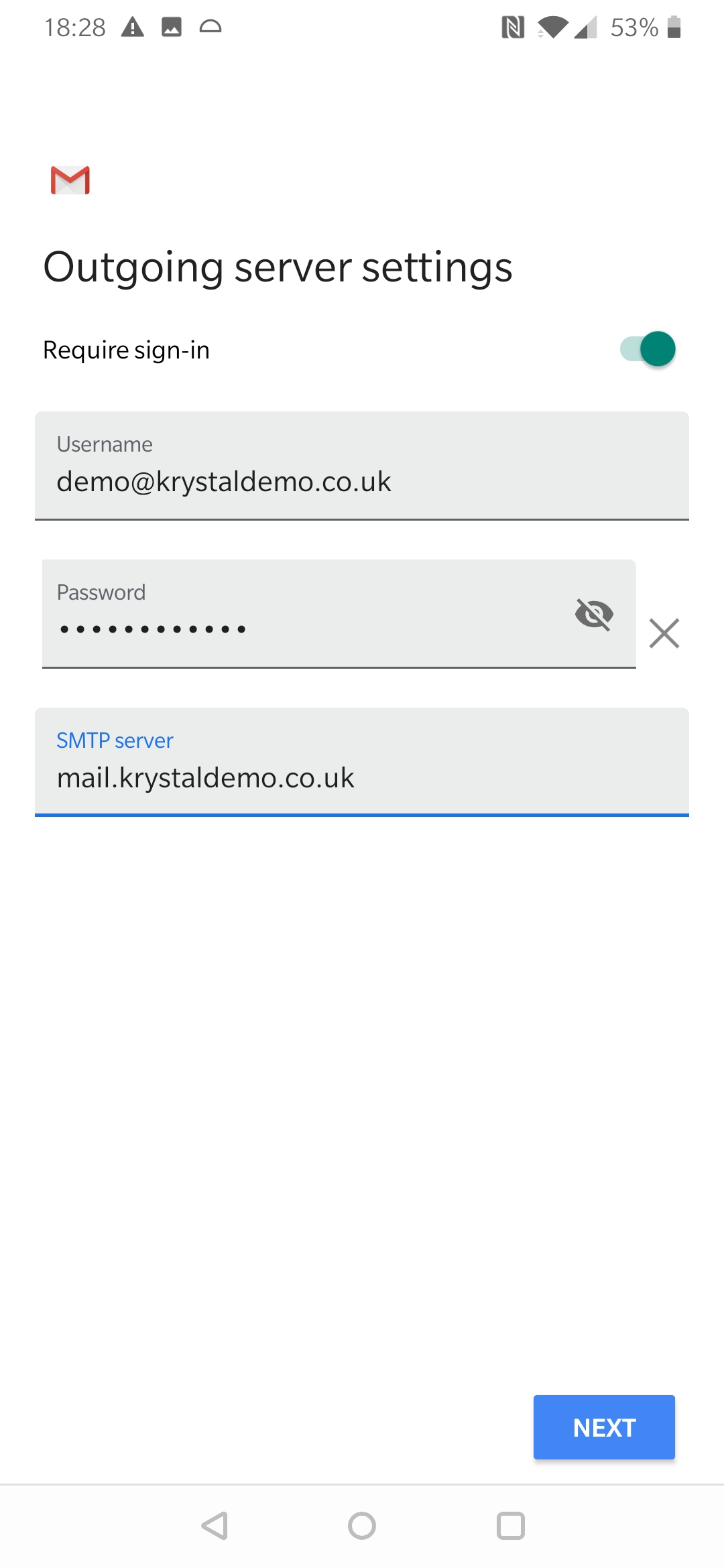
10 And the same for the outgoing mail server
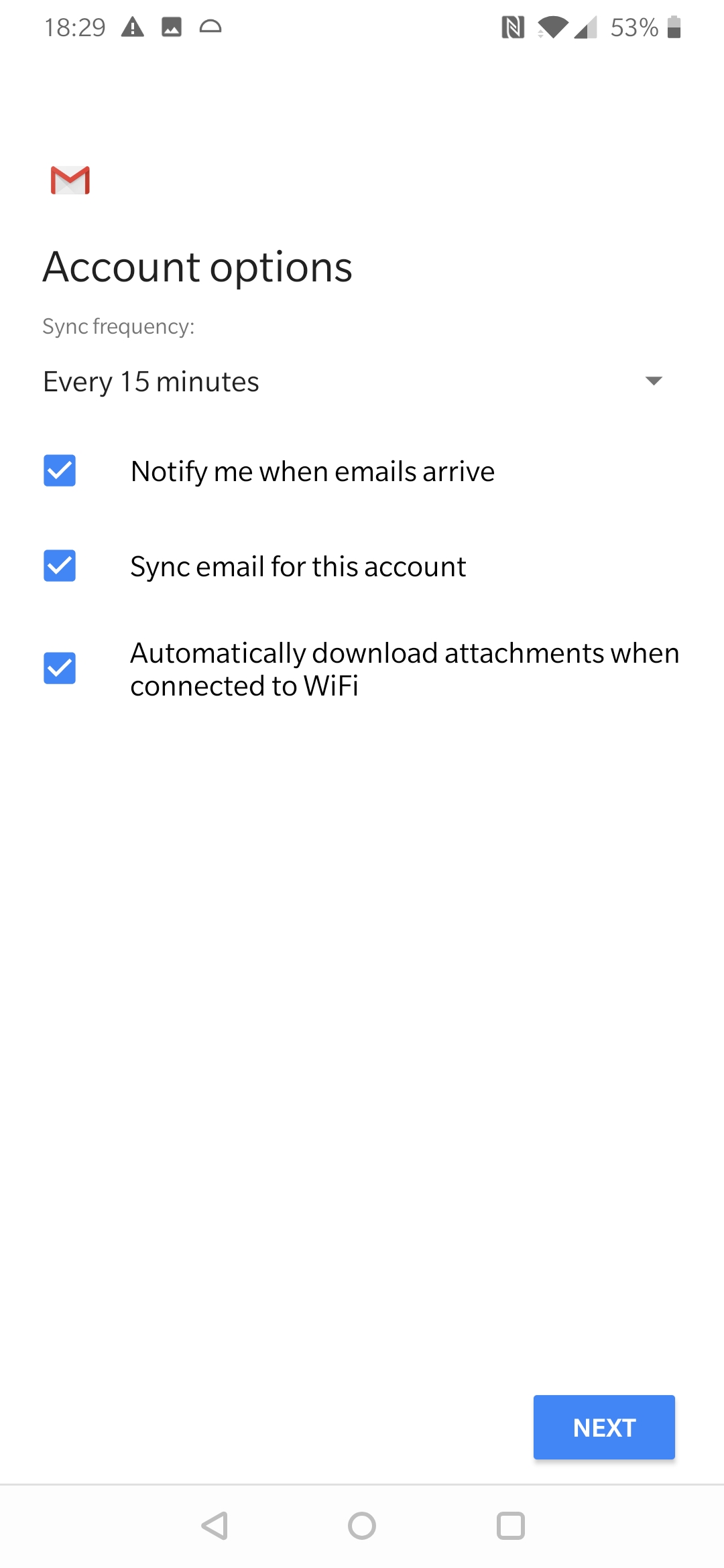
11 Choose your synchronisation frequency and other options
12 Check and adjust the Your Name details as appropriate
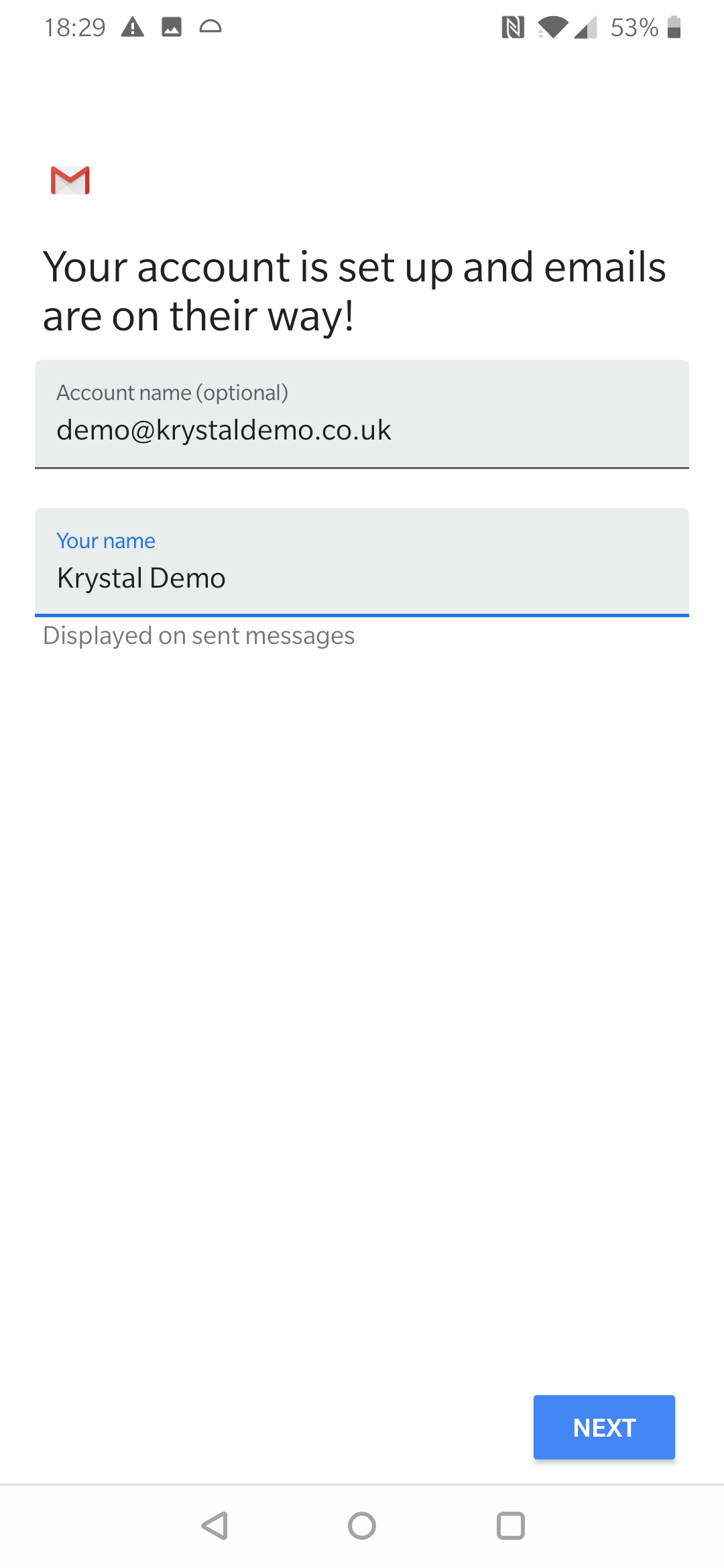
13 Your account is added and ready to use - click Take me to Gmail.