Setting up Microsoft Outlook (Windows)
This guide walks you through setting up an email account in the Microsoft Outlook email client on your Window PC or Laptop.
1 If this is your first time using Outlook and you don't have any mail accounts set up already, you may see a splash screen asking you to enter your email address. If not, select File from the Menu Bar.
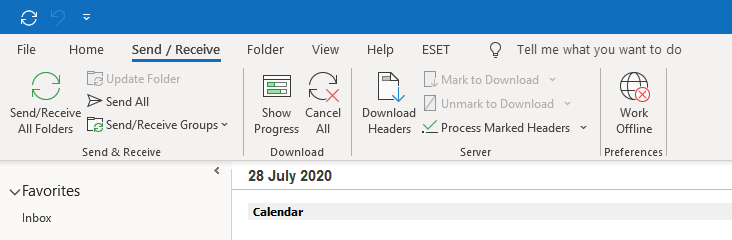
2 Then click Add Account.

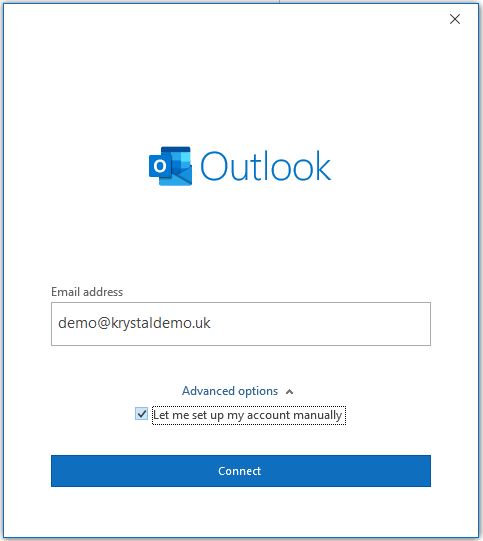
3 Enter the email address you'd like to add. Click on Advanced options and tick Let me set up my account manually.
4 Outlook should then give you the option to select either POP or IMAP.

5 Outlook should then ask for your IMAP account settings, enter your incoming and outgoing server details and port numbers, select the encryption type to SSL/TLS and click Next.

6 Enter your mailbox password and finally click Connect to complete the setup.

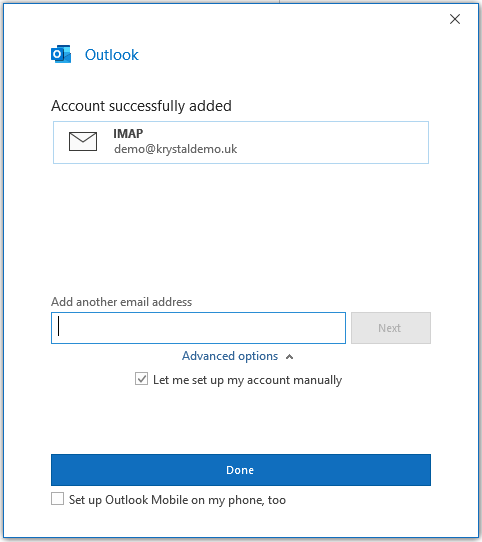
7 Congratulations, you should now have successfully added your email account to outlook. Just click Done to return to your mailbox.